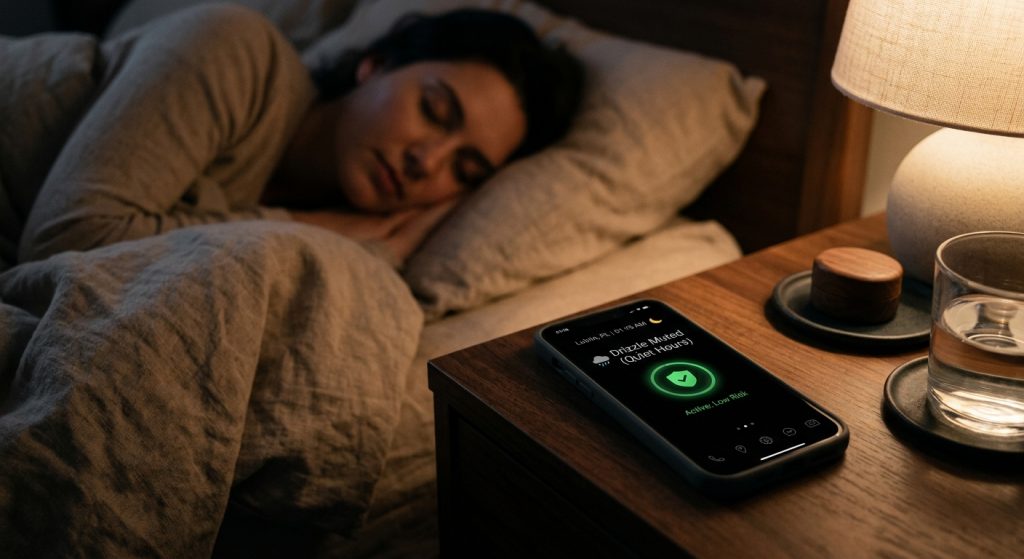
Tired of losing sleep over minor rain alerts while missing critical severe weather warnings?
Finding the right balance between staying informed and getting enough rest is essential. When you install Weather Alerts: Radar Tracker, you can easily control which notifications trigger sounds during the night. Specifically, you can set Quiet Hours for standard updates while allowing emergency alerts to wake you.
How do Quiet Hours work with push notifications?
Quiet Hours automatically mute non-essential alerts like light rain or minor temperature shifts during your specified sleep schedule.
For example, you might want to know if it rains during the day, but you do not need that notification at 2 AM. Instead, the app silences those everyday alerts. However, the system still tracks the live weather radar in the background. As a result, you will see the notifications on your screen when you wake up, without having your sleep interrupted.
Why are severe weather warnings different?
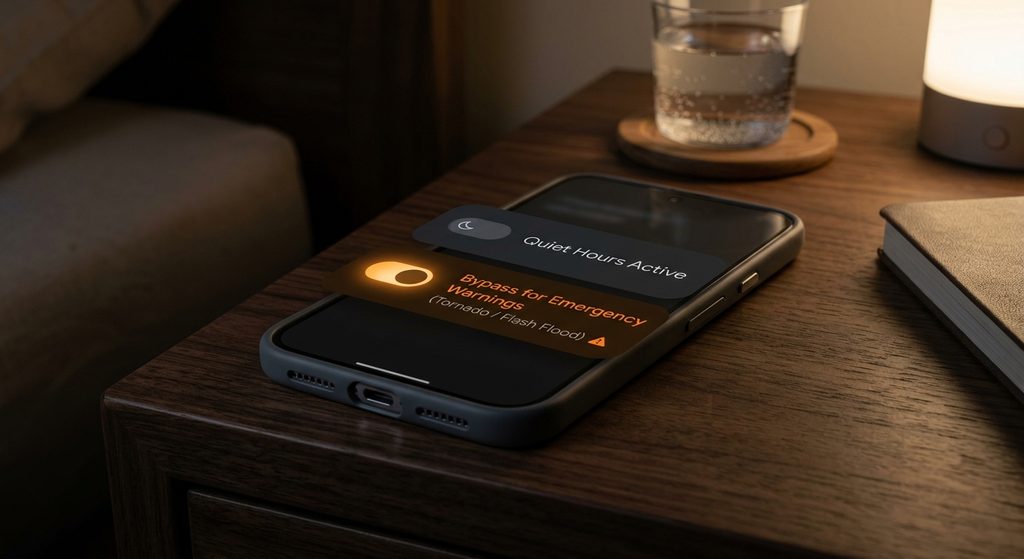
Emergency warnings bypass Quiet Hours because they alert you to immediate, life-threatening conditions.
In addition, these alerts use distinct sounds to grab your attention. Therefore, if a tornado warning or flash flood alert is issued for your local weather zone, the app ensures you hear it immediately. Specifically, the system prioritizes official weather service warnings over custom weather alerts, so you never miss a dangerous atmospheric shift.
How can I customize alert sounds for different events?
You can assign unique custom sounds to different alert categories within the app settings.
For instance, you might choose a loud siren for tornado warnings and a soft chime for rain. Similarly, you can set distinct tones for pressure shifts or wind speed thresholds. Because of this flexibility, you can instantly recognize the severity of an alert just by its sound. Then, you can decide whether you need to check the home screen weather widget or open the live radar.
Can I set Active Hours instead of Quiet Hours?
Yes, Active Hours allow you to define exactly when you want to receive certain custom weather alerts.
Instead of muting alerts at night, you can choose to only receive UV index or wind speed notifications during your workday or commute. Meanwhile, critical emergency warnings will always override these schedules. Finally, this ensures your phone is not buzzing constantly with irrelevant data when you are busy.
Are widgets affected by notification schedules?
No, your home screen weather widget updates continuously regardless of your Quiet Hours settings.
Even if notifications are silenced, you can still glance at your widget to check the hourly forecast or see active warnings. So, you remain informed without opening the app or dealing with constant push notifications. Check out our product overview to see how widgets integrate with our alerts.
Steps to Optimize Your Weather Alerts
- Open the app and navigate to the settings menu to configure your schedules.
- Set your Quiet Hours to match your typical sleep schedule.
- Verify that severe weather warnings are set to override Quiet Hours with loud emergency sounds.
- Assign custom sounds to your daily alerts, such as rain or temperature spikes.
- Read more weather alert guides on our blog for advanced tips.
- Ready to take control? Head to the download Weather Alerts section.
- Get the app for iOS on the App Store.
- Download for Android on Google Play.